Website health check: a one-minute check-up and what to fix first
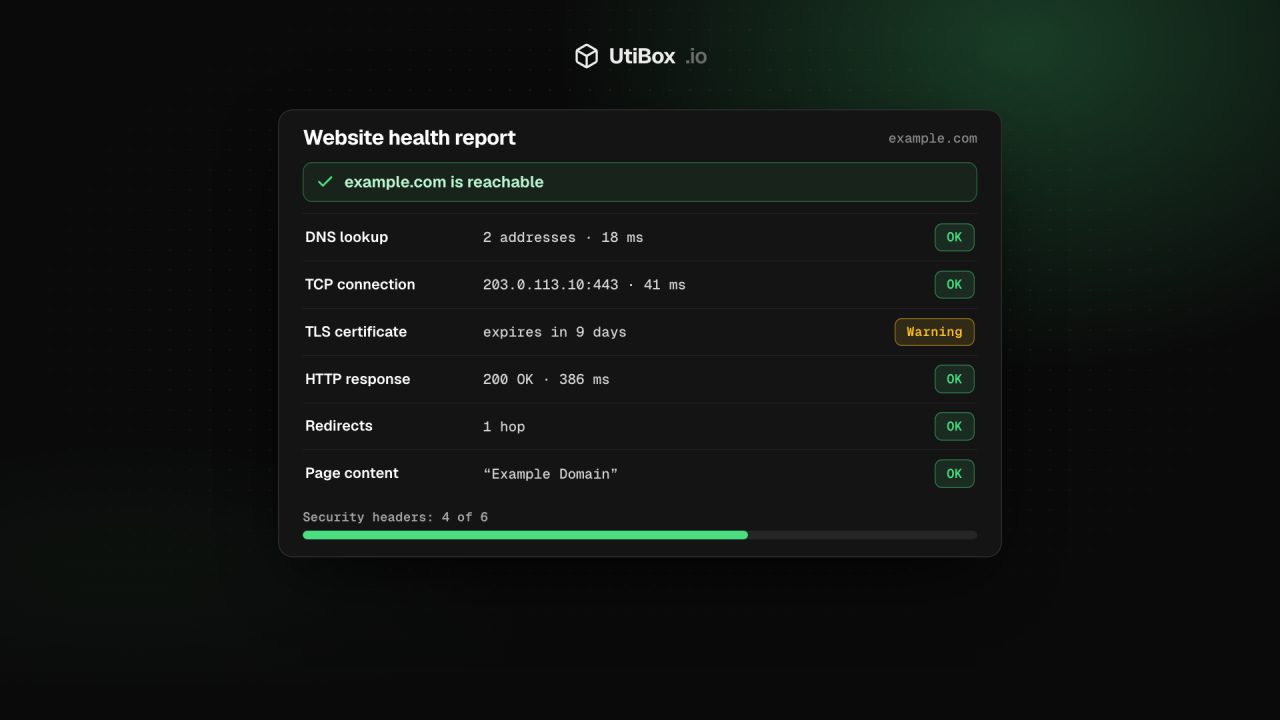
One report checks your site’s DNS, connection, certificate, HTTP response, redirects, security headers and email records. Here’s how to read each part, what the warnings mean and which problems to fix first.
Illustration: UtiBox
You’ve moved your site to a new host, a launch is a day away, or a client has asked you to “just have a quick look” at their website. Doing that properly means opening half a dozen tools.
The Website Health Report runs those checks on one address and puts the answers on a single page. Here’s what it checks, how to read it and what to fix first.
What the report checks
From our server, the report follows the steps a browser takes, then adds a few more:
- DNS lookup: does the name resolve, and to which addresses?
- TCP connection: does the server accept a connection on the web port?
- TLS certificate: is it valid, trusted and issued for this name, and how many days are left?
- HTTP response: the status code, and how long the server took to start answering.
- Redirects: every hop, with its status code and time.
- Page content: the size of the response and the page title.
- Security headers: six optional headers that make browsers safer, scored out of six.
- DNS and email: name servers, mail servers (MX), CAA, SPF and DMARC.
The report is built for you and not saved. For a result link you can share, use the Website Down Checker.
Step by step
- Type your address, such as
example.com. If you leave offhttps://, we add it. To test one page, paste its full URL: the HTTP, redirect and content checks then run against that page. - Press Run report. It takes a few seconds, because each layer is checked in turn.
- Read the verdict, then each layer, then the headers and the DNS and email section. The Dig deeper links at the bottom open related tools with your domain filled in.
Reading the verdict
The headline says the site is reachable from our server, has problems or isn’t reachable, with a sentence explaining why.
One result often surprises people: a 403 or 429 still counts as reachable. The server answered; it just turned away an automated request. That’s usually bot protection, and the site probably works for people.
Reading the layers
Each layer is marked OK, Warning or Problem. These are the rules behind the marks:
| Layer | Warning | Problem |
|---|---|---|
| DNS lookup | – | The name doesn’t resolve |
| TCP connection | – | Refused, or not opened within 3 seconds |
| TLS certificate | 14 days or fewer left | Expired, not yet valid, wrong name, self-signed or an untrusted chain |
| HTTP response | First byte took over 3 seconds, or our request was refused (401, 403, 405, 406, 429) | 404, 410, other errors, any 5xx, or no answer within 8 seconds |
| Redirects | Still redirecting after 5 hops | Points somewhere we won’t follow, such as a private network |
| Page content | Empty response | – |
If the certificate fails, the report retries with certificate checks off. If the site answers then, the verdict says it works but visitors will see a browser warning.
What to fix first
Work from the top down. A failure in one layer usually explains the ones below it.
- Any layer marked Problem. DNS, connection and certificate failures stop visitors completely. Our troubleshooting guide covers the usual causes.
- A certificate warning. Fourteen days or fewer left usually means automatic renewal hasn’t happened, or has failed. See the SSL Certificate Checker and our certificate guide.
- A slow first byte. The Response Time Test splits the time into DNS, connection, TLS and server time.
- Redirect chains. If the hop table shows three or four steps, link straight to the final address. The Redirect Checker also flags temporary redirects and HTTPS downgrades.
- Security headers and email records. These rarely take a site down, but they’re cheap to add.
The security headers score
The score counts how many of these six headers the server sent:
| Header | What it does |
|---|---|
| Strict-Transport-Security (HSTS) | Tells browsers to always use HTTPS for the site |
| Content-Security-Policy | Limits where scripts and other resources may load from |
| X-Content-Type-Options | Stops browsers guessing file types; only counts when set to nosniff |
| X-Frame-Options | Stops other sites framing yours; a CSP with frame-ancestors counts instead |
| Referrer-Policy | Controls how much of the page address is sent to other sites |
| Permissions-Policy | Turns off browser features the site doesn’t use |
Treat the score as advice, not a grade. nosniff and a Referrer-Policy are one-line changes. HSTS is simple once HTTPS works everywhere on the domain. A Content-Security-Policy takes more care, because a strict one can block your own scripts.
The DNS and email section
- Name servers show who answers for your domain, so you know where to edit your DNS.
- Mail servers (MX): “None” means there are no MX records, which usually means the domain isn’t set up to receive email.
- CAA: “None” means any certificate authority may issue certificates for your domain. A CAA record limits that to the ones you use.
- SPF and DMARC: “Not published” on a domain that sends email is worth fixing. Our SPF, DKIM and DMARC guide explains them, and the SPF and DMARC checker looks closer.
These records are read for the name you type, with a leading www. dropped where needed. If you test a subdomain such as shop.example.com, run the main domain too.
Limits worth knowing
- Checks run from our server, in one location. A good report means the site works from there, not that it’s up for everyone.
- We read up to the first 256 KB of the page.
- Our requests identify themselves as UtiBoxBot, so a bot filter may treat us differently from a visitor.
Related


More from Guides

How to set up SPF, DKIM and DMARC to improve email deliverability
A step-by-step guide to publishing SPF, DKIM and DMARC records for your domain. It covers a safe rollout from monitoring to enforcement, and how to check that each record works.

Redirect chains and loops: how to find them and cut them to one hop
Years of site moves leave redirect chains behind: http to https, bare domain to www, old page to new. Here’s how to trace every hop, fix loops and long chains, and choose the right status code for…

Link preview looks wrong? Fix your Open Graph tags step by step
Your link shows the wrong picture, an old headline or no card at all when it’s shared. Here’s how to see what social and chat apps read from your page, fix the tags and get the new preview to show.


