Link preview looks wrong? Fix your Open Graph tags step by step
Your link shows the wrong picture, an old headline or no card at all when it’s shared. Here’s how to see what social and chat apps read from your page, fix the tags and get the new preview to show.
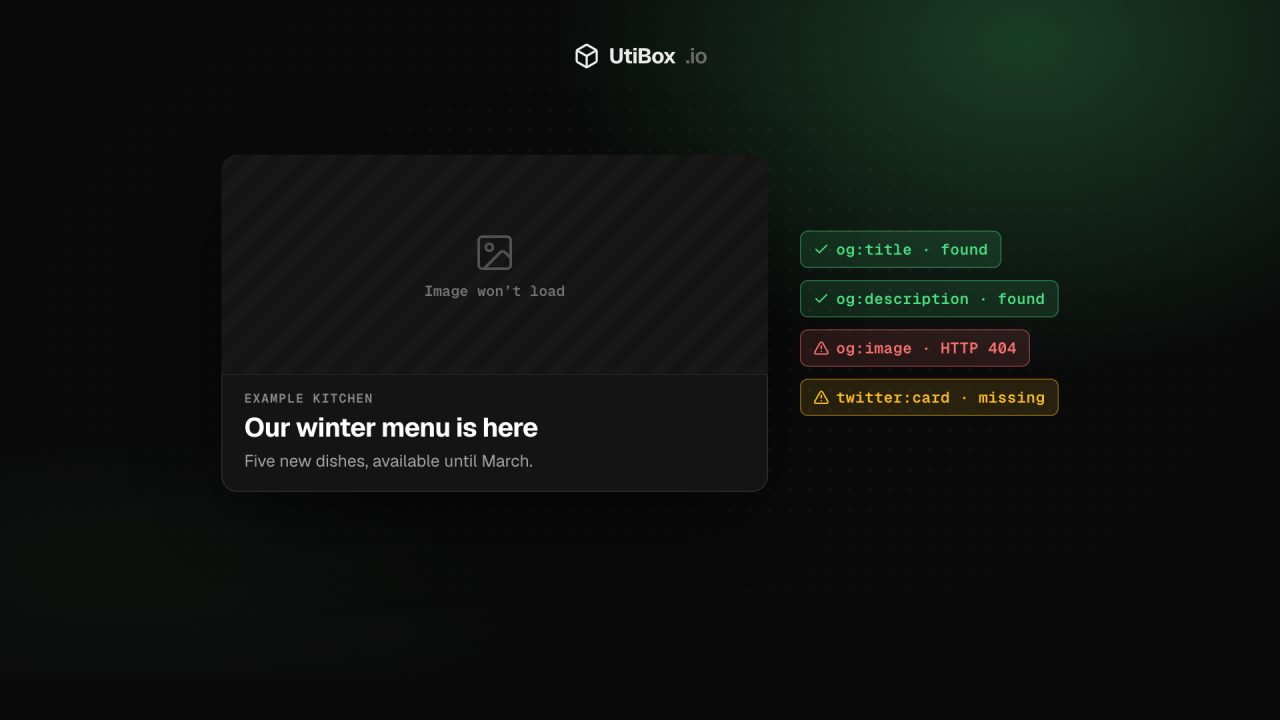
Illustration: UtiBox
You publish a post, paste the link into a group chat or a social update, and the card is wrong: no picture, last month’s headline, or just a bare address. The apps aren’t guessing. They build that card from a handful of tags in your page’s HTML, and when those tags are missing or broken, the card shows it.
This guide shows how to see exactly what those tags say, fix the usual mistakes and get the corrected preview to appear.
What the apps read
Most apps build link cards from Open Graph tags: <meta property="og:…"> lines in the page’s <head>. The Open Graph protocol lists four required properties for every page: og:title, og:type, og:image and og:url. og:description and og:site_name are optional, and worth adding.
X also reads its own twitter: tags. The one that matters most is twitter:card, which picks between a small card and a large one with a wide picture.
When a tag is missing, many apps fall back to the page’s <title> and meta description, or show a bare link.
Step 1: preview the page
- Open the Open Graph Preview and paste the full page address, such as
https://example.com/blog/winter-menu. - Press Preview. Our server fetches the page, follows up to five redirects and reads its Open Graph,
twitter:andarticle:tags. - Read the notice at the top. It names any of six tags that are missing:
og:title,og:description,og:image,og:url,og:typeandtwitter:card.
Below the notice you get three sample cards: a Facebook and LinkedIn style card, an X card, and a Slack and Discord style card. They’re approximations, since every app crops and shortens differently, but they show which title, description and picture you’re handing over. Where a tag is missing, the samples use your page title and description instead. A table then lists every tag found, word for word.
Step 2: check the image
A missing or broken picture is the most common complaint, so the tool checks the og:image address on its own. Our server requests it and reports the HTTP status, the content type and, when the site sends it, the file size. It flags three problems:
- The address answers with an error, such as 404. Apps will show no picture.
- It returns something that isn’t an image, such as an HTML page.
- It’s reported as over 8 MB. Meta’s documentation sets 8 MB as the most a shared image can be.
The picture in each sample card is loaded by your browser straight from your site; we don’t copy it. If a card says “Image didn’t load in your browser” while the server check passed, something between your browser and the image blocked it, such as hotlink protection or a filtered domain on your network.
For size, Meta recommends images of at least 1200 × 630 pixels, kept as close to a 1.91:1 ratio as possible so they aren’t cropped.
Step 3: fix the tags
Here’s a complete set for an article. Put it in the <head> and use full addresses starting with https://:
<meta property="og:type" content="article">
<meta property="og:title" content="Our winter menu is here">
<meta property="og:description" content="Five new dishes, available until March.">
<meta property="og:url" content="https://example.com/blog/winter-menu">
<meta property="og:image" content="https://example.com/images/winter-menu-1200x630.jpg">
<meta property="og:site_name" content="Example Kitchen">
<meta name="twitter:card" content="summary_large_image">
The fixes we see most often:
- Relative image paths. We resolve
/images/card.jpgagainst the page so we can test it, but write the full address instead of relying on every app to work it out. - Tags added by JavaScript. We read the HTML your server sends and don’t run scripts, so tags your site adds later in the browser won’t appear in our results. An app that doesn’t run your scripts won’t see them either. Put them in the server-rendered HTML.
- A small card on X. Our X sample shows the large card only when
twitter:cardissummary_large_image. - Another page’s details. Templates sometimes reuse one title or image across a whole section. Check that
og:url,og:titleandog:imagebelong to the page you’re sharing.
Step 4: check the tags behind the fallbacks
Run the same address through the Meta Tag Checker. It reads the <title>, meta description, canonical link and robots rules, and warns when a title runs past 60 characters, a description past 160, or the page carries a noindex. Those are the details apps fall back on and search engines show. The SERP Preview shows how your title and description fit in a Google-style result.
Step 5: get the new card to show
Apps cache previews, so a fixed page can keep its old card for a while. Meta’s documentation says images are cached by their URL and won’t update unless the URL changes, so give a replaced image a new file name, such as winter-menu-v2.jpg, and update og:image. Meta’s Sharing Debugger also triggers a fresh scrape of your page when you run it.
Limits worth knowing
- Checks run from our server, in one location, and our requests identify themselves as UtiBoxBot. A site that filters bots may treat us differently from the apps.
- We read the first 1 MB of the page’s HTML. Tags placed after that point aren’t found.
- Only public addresses on the standard web ports (80 and 443) can be checked, so a staging site on your own network or on a custom port won’t work.
- The page has to answer with a success status. A 404 or 500 gives you an error message instead of cards.
Related


More from Guides

How to set up SPF, DKIM and DMARC to improve email deliverability
A step-by-step guide to publishing SPF, DKIM and DMARC records for your domain. It covers a safe rollout from monitoring to enforcement, and how to check that each record works.

Website health check: a one-minute check-up and what to fix first
One report checks your site’s DNS, connection, certificate, HTTP response, redirects, security headers and email records. Here’s how to read each part, what the warnings mean and which problems to…

How to compare two versions of a text, config file or code, and read the diff
“What changed?” is hard to answer by eye. Here’s how a diff works, when to compare line by line or word by word, and how to read the results in the Diff Checker and Text Compare.


