How to compare two versions of a text, config file or code, and read the diff
“What changed?” is hard to answer by eye. Here’s how a diff works, when to compare line by line or word by word, and how to read the results in the Diff Checker and Text Compare.
Illustration: UtiBox
A colleague sends “the fixed config”. A contract comes back “with a few small edits”. A deploy breaks, and you need to know exactly how the new file differs from the last one that worked. Reading the two versions side by side misses things: one changed digit, a swapped word, a line that moved. A diff answers the question precisely.
What a diff does
A diff works out the smallest set of additions and removals that turns one text into the other, then shows you only those. A change is really a removal plus an addition in the same place.
The Diff Checker uses the Myers algorithm to do this. It’s the same approach git uses by default: the git diff documentation (opens in a new tab) describes myers as “The basic greedy diff algorithm. Currently, this is the default.”
What it compares matters as much as how. A diff can work on whole lines, on words or on single characters, and each suits a different job. That’s why UtiBox has two tools.
| Diff Checker | Text Compare | |
|---|---|---|
| Compares | Lines, then the words and symbols inside changed lines | Words, or characters |
| Layout | Two columns with line numbers | One combined text |
| Best for | Code, config files, CSV, lists | Prose: articles, contracts, product copy |
| Options | Ignore whitespace changes, ignore case, swap sides | Words or characters, ignore case, ignore punctuation, swap |
| Figures | Lines added, removed, changed and unchanged | Similarity, words added, removed and unchanged |
Both run entirely in your browser, so the texts you paste aren’t uploaded.
Reading the Diff Checker
Paste the original on the left and the changed version on the right, then press Compare. The result also updates as you edit either side.
- A removed line appears only on the left, with a gap opposite it.
- An added line appears only on the right.
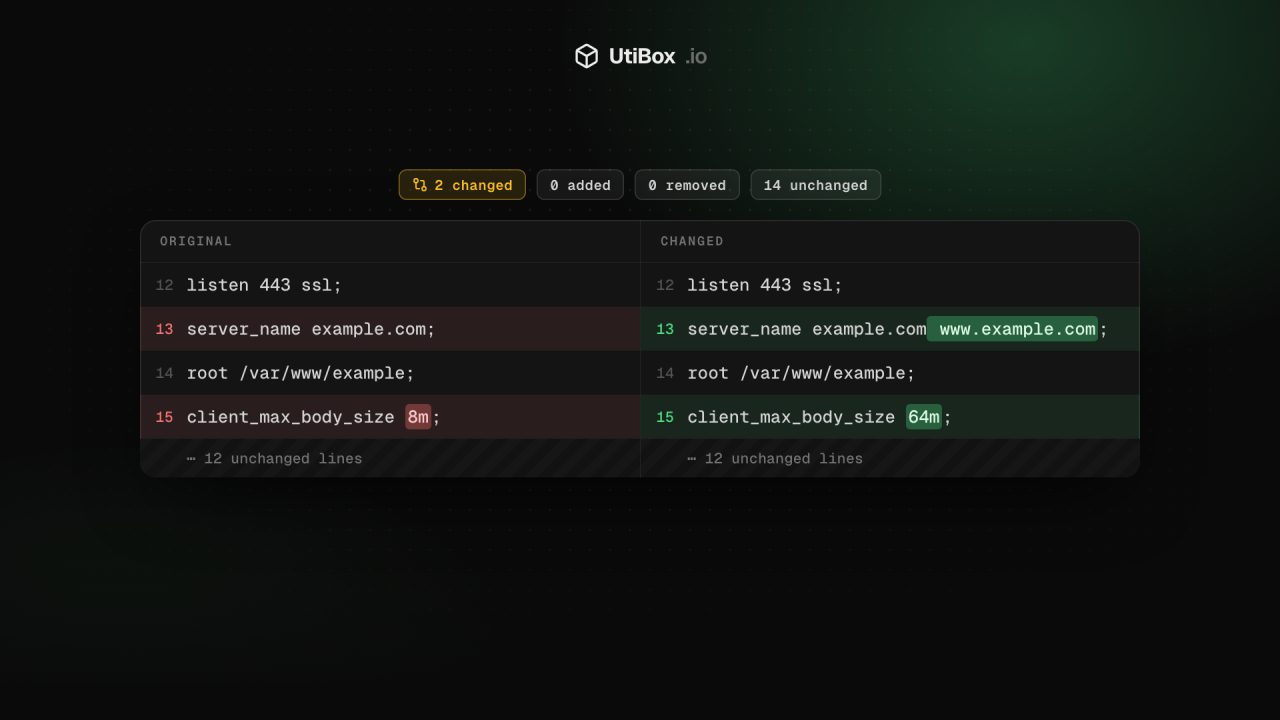
- A changed line: when lines are removed and added in the same place, they’re paired up, and the exact words and symbols that differ are highlighted inside the pair. One changed digit in a long line is easy to spot.
- Unchanged stretches are folded into a “⋯ 12 unchanged lines” marker, with three lines of context kept either side of each change.
The counters above give the number of lines added, removed, changed and unchanged. Swap sides flips which version counts as the original, which is handy when you pasted them the wrong way round.
If you’ve read a diff in git or a code review, you’ve seen the same information in unified format. Lines starting with a space are unchanged, lines starting with - were removed and lines starting with + were added. Each block starts with a header that gives the start line and line count in each version:
@@ -12,4 +12,4 @@
     listen 443 ssl;
-    server_name example.com;
+    server_name example.com www.example.com;
     root /var/www/example;
-    client_max_body_size 8m;
+    client_max_body_size 64m;
Here, four lines starting at line 12 of the old file became four lines starting at line 12 of the new one: two unchanged, two edited. The Diff Checker shows exactly this as two columns instead.
The options
Ignore whitespace changes collapses runs of spaces and tabs into one and trims the ends of each line before comparing, so a re-indented file reports “No differences” if nothing else changed. Don’t tick it for YAML, Python or anything else where indentation carries meaning. Ignore case does the same for capital letters.
Very different texts can be slow to compare in a browser. If a comparison needs more than 2,500 line additions and removals, the tool says so; compare the files in smaller sections.
Reading Text Compare
For writing rather than code, line-by-line comparison is too coarse: one edited sentence makes a whole paragraph “changed”. Text Compare works word by word and shows one combined text, with removed words struck through in red and added words highlighted in green.
- Word mode treats each word and each punctuation mark as a separate piece. It suits rewritten sentences.
- Character mode compares letter by letter, for typo fixes and small corrections.
- Ignore punctuation leaves out commas, full stops, quotes and other symbols, so only changes to the words are shown.
Above the text you get the words added, removed and unchanged, and a similarity score: twice the unchanged count divided by the combined length of both texts. Spaces and line breaks are left out of the figures, and so is punctuation in word mode.
Tips for a clean comparison
- Put the older or known-good version on the left. Both tools mark as “removed” whatever is in the left box but not the right.
- Compare like with like. If one file has been reformatted or re-sorted, nearly every line will differ. Tidy both the same way first.
- Mind what’s in a config file. The comparison stays on your device, but files with passwords or API keys still deserve care wherever else you paste them. If a key has ended up somewhere it shouldn’t, our guide on rotating a leaked API key covers what to do next.
Related


More from Guides

HTTP status codes explained for site owners: 2xx, 3xx, 4xx and 5xx
Every response starts with a three-digit code that browsers mostly hide but search engines and uptime monitors read first. Here’s what each family means, how Google’s crawlers treat them, and what…

XML sitemaps search engines can read: limits and common errors
One unescaped character can stop a crawler reading the rest of your sitemap. Here’s what belongs in an XML sitemap, the limits set by sitemaps.org and Google, the errors that break it, and how to…

Heading structure: one H1, no skipped levels, and why it matters
Headings are how readers skim a page and how assistive technology moves around it. Here’s what the HTML standard and WCAG ask for, what Google actually says about headings, and how to check any…


